![23LenderLogixLogo_White_Horz-1.png]](https://learn.lenderlogix.com/hs-fs/hubfs/23LenderLogixLogo_White_Horz-1.png?height=20&name=23LenderLogixLogo_White_Horz-1.png)
Let's go through updating information on your profile efficiently using the main menu. Follow these steps to keep your profile details current and accurate.
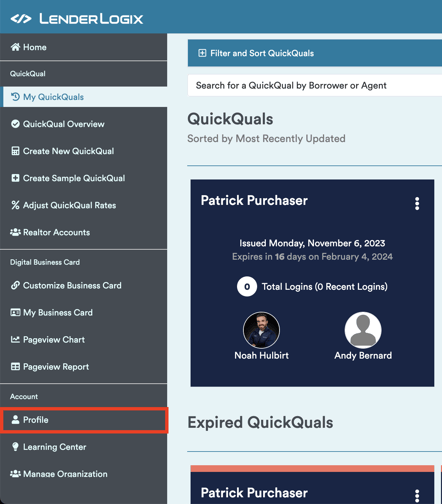
1: Access the Profile Tab:
-
- Navigate to the left-hand side of your main menu.
- Locate and click on the "Profile" option.
2: Profile Tab Overview:
- Upon entering the Profile tab, you'll find various options for customization:
-
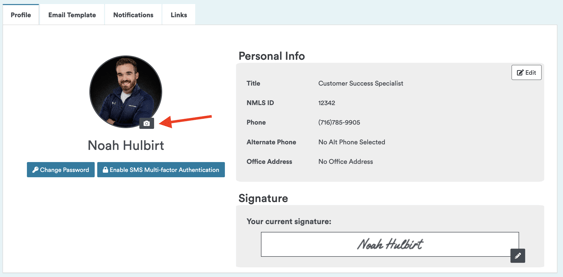
Updating Your Profile Picture:
- Click the camera icon next to your current photo to upload a new picture.
- Click the camera icon next to your current photo to upload a new picture.
-
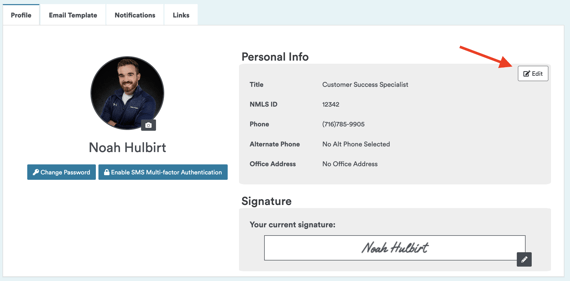
Editing Personal Information:
- Click the "Edit" button to update details such as your title, phone number, or street address.
- Click the "Edit" button to update details such as your title, phone number, or street address.
-
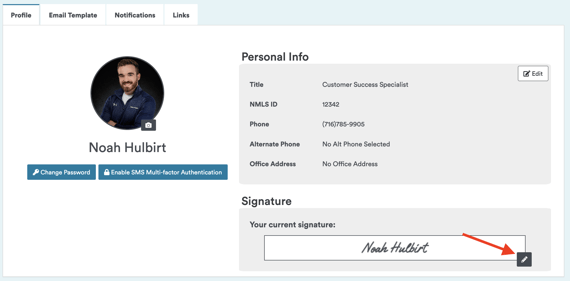
Updating Signature:
- Modify the signature that appears at the bottom of letters issued from your QuickQual.
- Modify the signature that appears at the bottom of letters issued from your QuickQual.
-
3: Email Template:
- Customize the email template used when inviting borrowers.
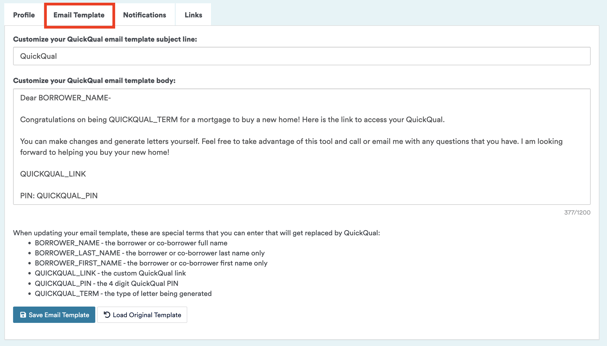
- Keep in mind that certain terms like "BORROWER_NAME" are auto-filled and should not be edited.
- Note that you may want to avoid adding lengthy wording on your template. Email templates are subject to character limits imposed by mail servers (e.g., Outlook or Gmail).
4: Notification Settings:
- Adjust notification preferences for borrower logins and issued letters from a QuickQual
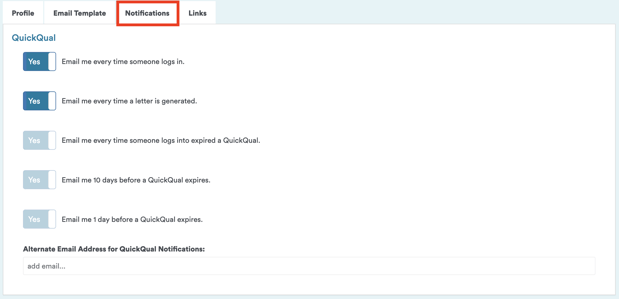
For users with our LiteSpeed application, you'll find additional notification settings for LiteSpeed here as well.
By following these steps, you can easily keep your profile information up-to-date and tailor communication templates to suit your preferences. If you have any questions, don't hesitate to reach out to our team here at LenderLogix!