
1.Navigate to QuickQual Creation:
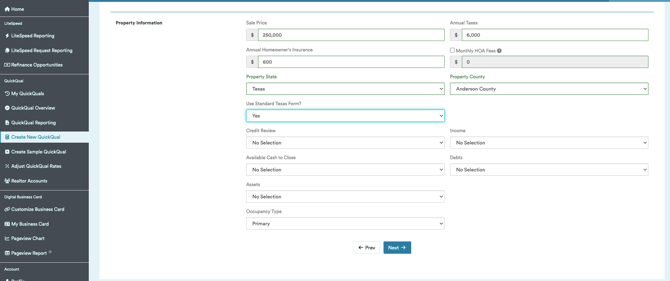
From the left sidebar menu, select Create New QuickQual (or open an existing record to edit).
2.Set the Property State:In the Property Information section, use the Property State dropdown menu to select either Arizona or Texas.
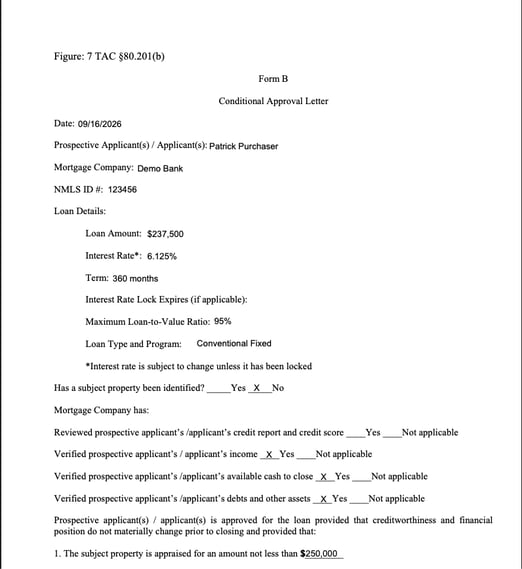
3.Enable the Standard State Form:Locate the Use Standard [State] Form? field (e.g., Use Standard Texas Form?) and set the dropdown selection to Yes.
4.Complete Property Details and Save:Fill out the remaining property and financial fields, then click Next to proceed and finish generating your QuickQual.
Important Note on Custom Templates
Setting Use Standard Form? to Yes will automatically override any custom pre-approval letter loaded into your account for that transaction. If you prefer to use your organization's custom branded letter layout instead, keep this toggle set to No.