
Overview
LiteSpeed Tracking Links allow you to track lead attribution inside Encompass using standard UTM (Urchin Tracking Module) parameters. UTM parameters are short text tags added to the end of a URL to measure web traffic. When a user clicks one of these links, the tracking data is captured so you know exactly which channels, posts, or marketing efforts drove the lead.
The best part? These links do not need to be tied to a structured campaign within LiteSpeed. Your team can generate LiteSpeed Tracking Links on the fly and add them to any LiteSpeed URL at any time.
How It Works
When a borrower clicks on a LiteSpeed Tracking Link, LiteSpeed automatically captures the embedded tags. As the lead or application flows into Encompass, this data is mapped directly to dedicated custom LiteSpeed fields.
Because this data is stored in standard custom fields, your team can easily pull reports inside Encompass to analyze which referral sources, digital channels, or marketing efforts are yielding the highest volume of applications.
Custom Field Mapping
The data from your LiteSpeed Tracking Links will automatically write back to the following custom fields in Encompass:
| Link Parameter | Encompass Custom Field | Description |
utm_campaign |
CX.LL.POS.UTM.CAMPAIGN |
The specific campaign name, product, or promotion. |
utm_source |
CX.LL.POS.UTM.SOURCE |
The platform or channel where the link lives (e.g., Facebook, newsletter, email signature). |
utm_term |
CX.LL.POS.UTM.TERM |
Typically used for tracking specific paid search keywords. |
utm_content |
CX.LL.POS.UTM.CONTENT |
Used to differentiate similar links or test different calls-to-action on the same page. |
How to Build and Use a Tracking Link
You don't need to configure anything inside the LiteSpeed dashboard to use this feature. You can simply append the parameters to any of your existing LiteSpeed links manually or by using an online URL builder.
Formatting Example
To create a tracking link, append a ? to the end of your standard LiteSpeed URL, followed by the specific parameters connected by an & symbol.
Standard LiteSpeed URL: https://dev.lenderlogix.com/apply-now/scott@lenderlogix.com&application=STANDARD
LiteSpeed Tracking Link: https://dev.lenderlogix.com/apply-now/scott@lenderlogix.com&application=STANDARD?utm_source=facebook&utm_campaign=first time home buyers
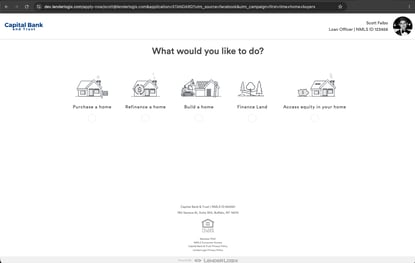
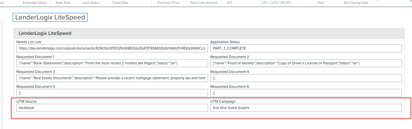
In the example above, if a borrower completes an application using that specific link, Encompass will automatically populate:
CX.LL.POS.UTM.SOURCEwith facebookCX.LL.POS.UTM.CAMPAIGNwith first time home buyers
Use Cases for Lenders
- Social Media Sharing: Track applications that originate from a specific Loan Officer's Facebook post vs. an organic LinkedIn post.
- Email Signatures: Add unique source tags to individual LO email signatures to see how much traffic is driven by daily email interactions.
- Print & Local Marketing: Embed a LiteSpeed Tracking Link with a
utm_source=spring_flyertag into a QR code for a print marketing campaign. - Co-Marketing with Partners: Provide a specific business partner with a link appended with
utm_content=agent_smithto monitor referral success.
Need help reporting on these fields?
If you need assistance setting up reports for these custom tracking fields inside Encompass, please contact our support team or reach out to your Customer Success Manager!